 Home
About Us
Past Events
Calendar
Past Services
Home
About Us
Past Events
Calendar
Past Services
 Sunday School
 10:00am
Sunday Morning Service 11:00am Sunday Night Service 6:00pm Wednesday Service 7:30pm
Home
About Us
Past Events
Calendar
Past Services
Sunday School | 1. First go to http://www.calvarybaptistofconyers.org/PastServices.html (Clicking this link will open it in a new window) |
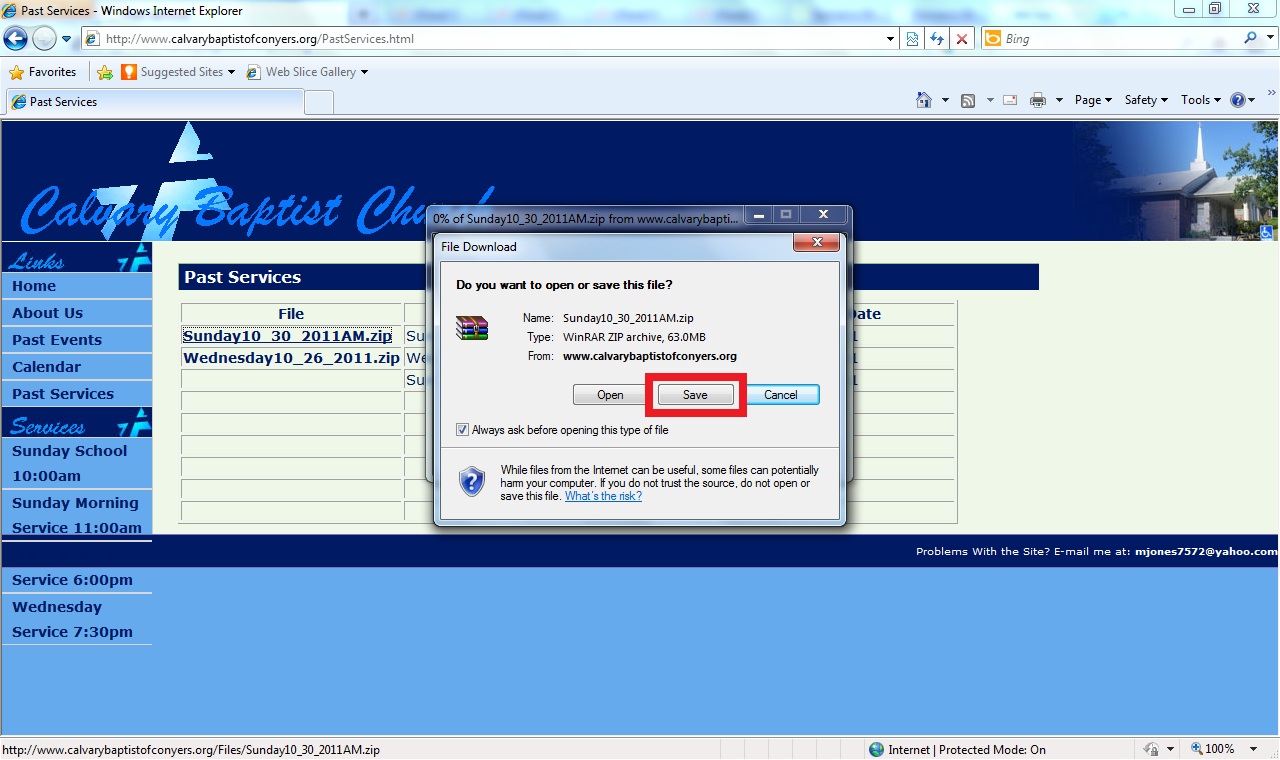
| 2. Click a link on the left under the File section for the Sermon you wish to download, and click Save on the File Download box |
 |
| 3. Save the File to an easy to remember place such as the Desktop |
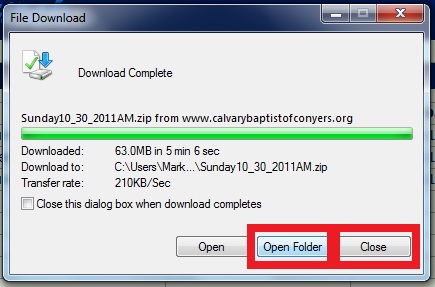
| 4. After the File has finished downloading click the Open Folder button if available, if not then click the Close button |
 |
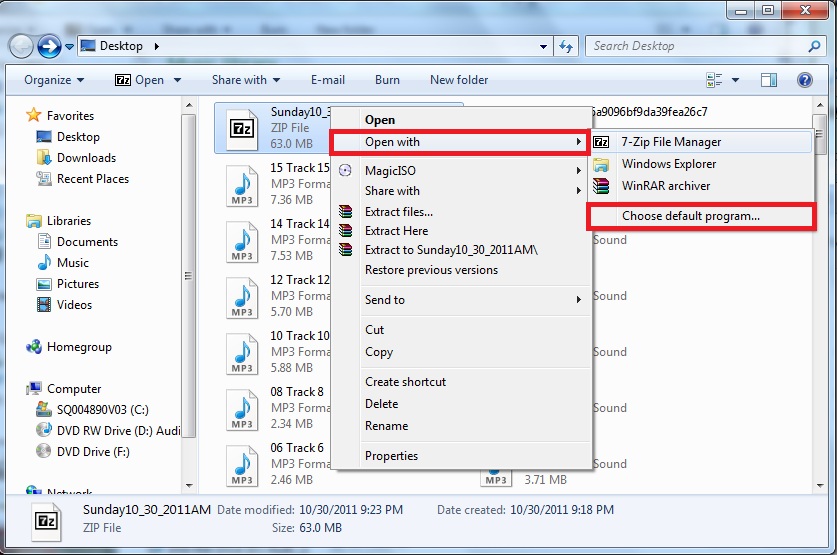
| 5. Locate the file on your computer (If you clicked Open Folder earlier the File can be found in the now open folder) and right-click(click the right button on your mouse) |
| 6. Move your mouse over the Open With section & select Choose Default Program... at the bottom of the list |
 |
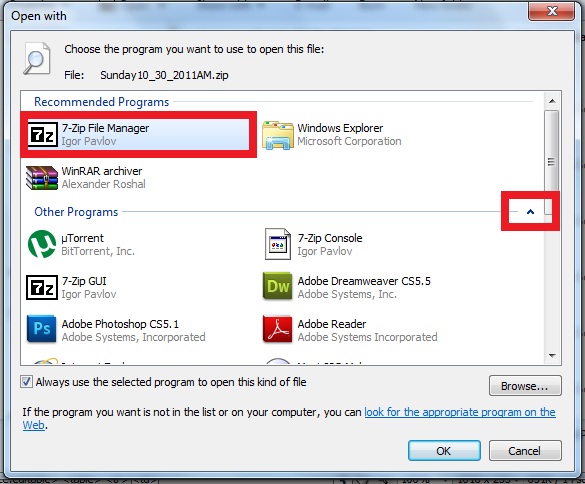
| 7. Look for 7-Zip File Manager and click it (it may be under the Other Programs section, to view them click the arrow on the right) then click OK |
 |
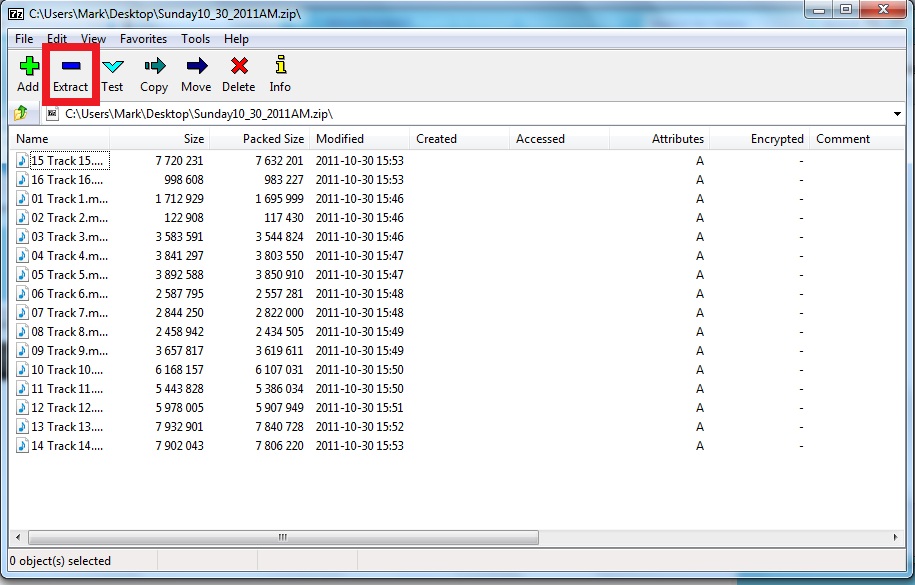
| 8. The program should open and look somewhat similar to below, and click the Extract button |
 |
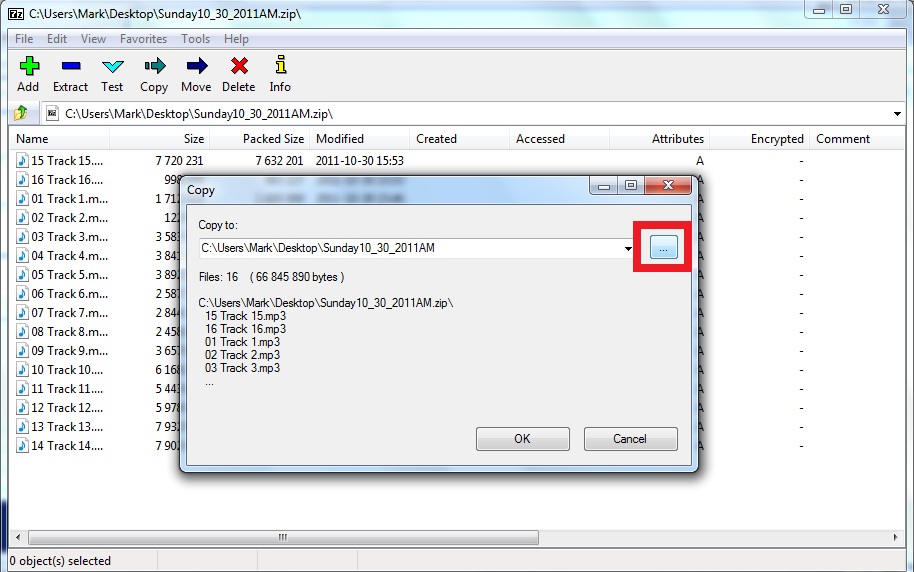
| 9. Click the ... button on the right |
 |
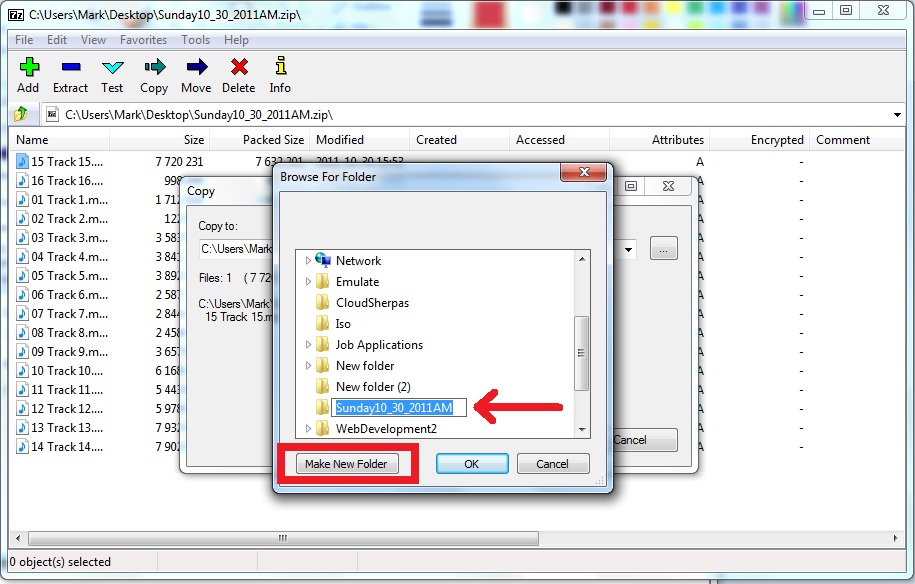
| 10. Click the Make New Folder button and name the Folder whatever you would like (I would advise naming it somethig similar to Sunday10_30_2011AM so you know which sermon it is) |
 |
| 11. Click OK and then OK again, it will extract the sermon into the folder you have just created |
| 12. Then simply find the folder, open it, and double click on the track to play it. |
| Tip: You should never need to do steps 6 & 7 again, just find the file you downloaded from the website, double-click it to open, create the folder, extract, & enjoy |